How to Create a Foundry Server Guide: Difference between revisions
(Created page with "== Option #1: Renting a Foundry server (see example control panel below!) == File:Control panel.gif|none|link=https://www.survivalservers.com/sspanel/?game=thefront&trckaff=...") |
No edit summary |
||
| Line 1: | Line 1: | ||
== Option #1: Renting a Foundry server (see example control panel below!) == | == Option #1: Renting a Foundry server (see example control panel below!) == | ||
[[File:Control panel.gif|none|link=https://www.survivalservers.com/sspanel/?game= | [[File:Control panel.gif|none|link=https://www.survivalservers.com/sspanel/?game=foundry&trckaff=3881&trckit=WIKI]] | ||
[[File:The Front_game_server.png|none|link=https://www.survivalservers.com/sspanel/?game=foundry&trckaff=3881&trckit=WIKI]] | [[File:The Front_game_server.png|none|link=https://www.survivalservers.com/sspanel/?game=foundry&trckaff=3881&trckit=WIKI]] | ||
== Option #2: Creating a Foundry Server From Your Home Computer or Dedicated Server == | |||
== Server Requirements == | |||
Windows 10/11, Server 2016/2019/2022 & 64-Bit | |||
Quad Core processor (requires up to 2 full cores) | |||
Up to 8GB memory (currently uses around 1GB memory) | |||
4GB disk space (install folder) | |||
== Step 1: Fetching Game Server files == | |||
The best method to get dedicated server game files is via the dedicated server depot on Steam via [https://developer.valvesoftware.com/wiki/SteamCMD SteamCMD]. | |||
# Create a folder where you wish to store your Foundry game server hosting files | |||
# Inside of the folder, place the newly downloading [https://developer.valvesoftware.com/wiki/SteamCMD SteamCMD.exe] file | |||
# Create a batch file named '''SteamCMD.bat''' | |||
# Place the following code in this batch file: | |||
::: @echo off | |||
::: start "" steamcmd.exe +login USER PASS +force_install_dir "C:\Some\Path\Where\You\Want\Game\Server\Files\To\Go" +app_update 2915550 validate +quit | |||
# Right-click SteamCMD.bat and Run as Administrator | |||
# Your game server files should be completely downloaded by now | |||
== Step 2: Setting up a Foundry Dedicated Server == | |||
# Create a batch file named '''Foundry.bat''' in your newly created Foundry server folder from step 1 | |||
# Place the following code in this batch file: | |||
@echo off | |||
REM Dedicated Server Guide: https://dedicated.foundry-game.com/ | |||
REM Setup main game appid | |||
set SteamAppId=983870 | |||
set SteamGameId=983870 | |||
echo 983870>steam_appid.txt | |||
start FoundryDedicatedServer.exe | |||
== Step 3: Configuring your Foundry Server == | |||
Now comes the fun part, setting up your Foundry game server to your liking. | |||
'''/app.cfg''' - modifies the server configuration<br> | |||
<pre> | |||
server_name=RENT TODAY by SurvivalServers.com | |||
server_password= | |||
server_world_name=MyWorld | |||
server_port=40300 | |||
server_max_players=4 | |||
map_seed=197624 | |||
server_persistent_data_override_folder=C:\Path\To\foundry\Server\ | |||
pause_server_when_empty=true | |||
autosave_interval=300 | |||
server_is_public=true | |||
</pre> | |||
== Step 3: Port Forwarding == | |||
Add an incoming rule to your Windows Firewall to allow TCP/UDP port (game port) 15636, (Steam query port) 15637 (or whichever ports you decide to use) | |||
You may additionally need to add a forwarding rule to your network router. You can use [http://PortForward.com/ PortForward.com] to read how to do this. | |||
== Location of World Save Data == | |||
To locate your save folder, navigate to this folder: | |||
'''C:\Users\%USER_NAME%\AppData\LocalLow\Channel 3 Entertainment\FoundryDedicatedServer\save''' | |||
There will be four folders and two files, back them all up in order to make a backup. | |||
Latest revision as of 10:18, 3 May 2024
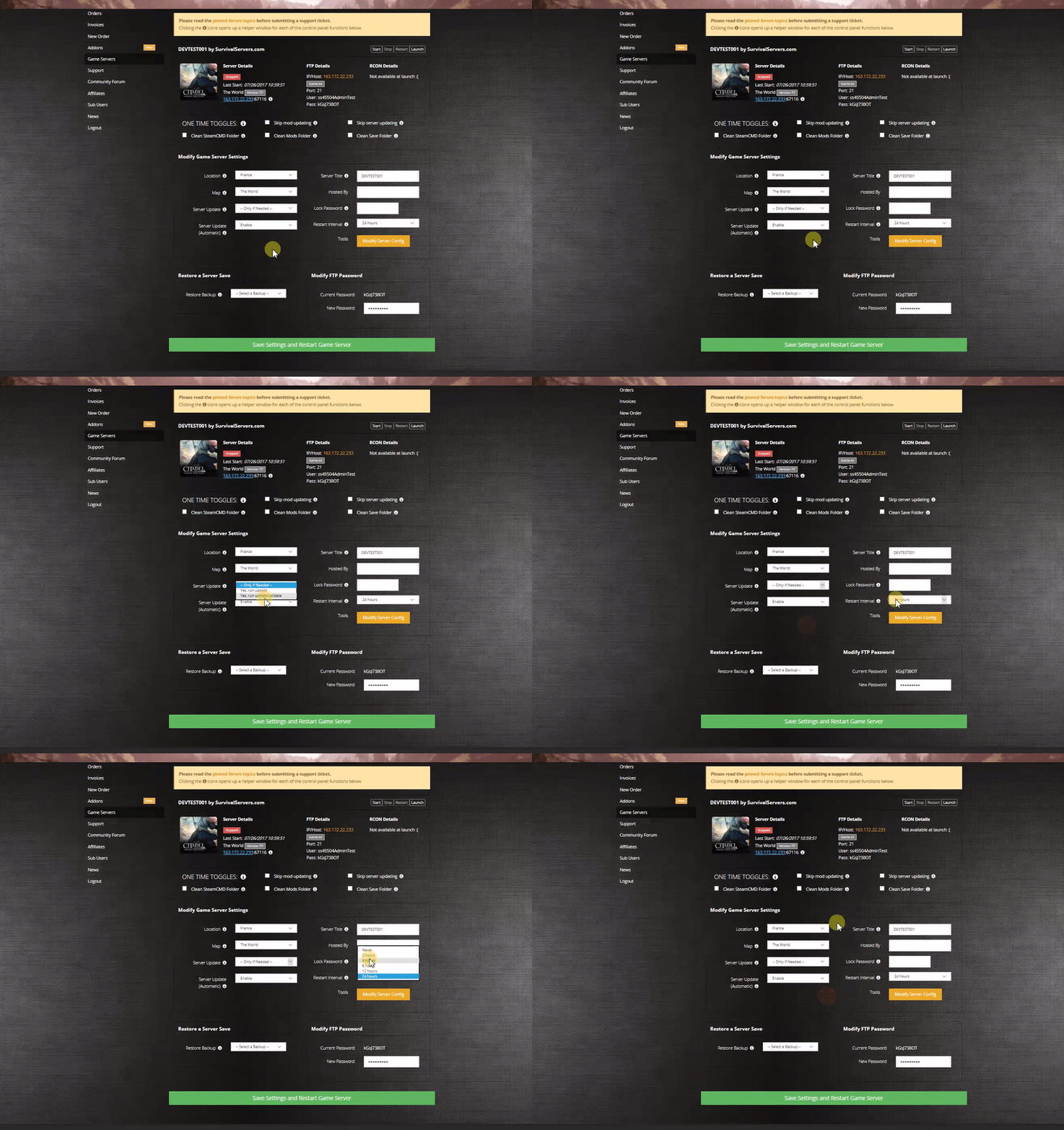
Option #1: Renting a Foundry server (see example control panel below!)

Option #2: Creating a Foundry Server From Your Home Computer or Dedicated Server
Server Requirements
Windows 10/11, Server 2016/2019/2022 & 64-Bit
Quad Core processor (requires up to 2 full cores)
Up to 8GB memory (currently uses around 1GB memory)
4GB disk space (install folder)
Step 1: Fetching Game Server files
The best method to get dedicated server game files is via the dedicated server depot on Steam via SteamCMD.
- Create a folder where you wish to store your Foundry game server hosting files
- Inside of the folder, place the newly downloading SteamCMD.exe file
- Create a batch file named SteamCMD.bat
- Place the following code in this batch file:
- @echo off
- start "" steamcmd.exe +login USER PASS +force_install_dir "C:\Some\Path\Where\You\Want\Game\Server\Files\To\Go" +app_update 2915550 validate +quit
- Right-click SteamCMD.bat and Run as Administrator
- Your game server files should be completely downloaded by now
Step 2: Setting up a Foundry Dedicated Server
- Create a batch file named Foundry.bat in your newly created Foundry server folder from step 1
- Place the following code in this batch file:
   @echo off
   REM Dedicated Server Guide: https://dedicated.foundry-game.com/
   REM Setup main game appid
   set SteamAppId=983870
   set SteamGameId=983870
   echo 983870>steam_appid.txt
   start FoundryDedicatedServer.exe
Step 3: Configuring your Foundry Server
Now comes the fun part, setting up your Foundry game server to your liking.
/app.cfg - modifies the server configuration
server_name=RENT TODAY by SurvivalServers.com
server_password=
server_world_name=MyWorld
server_port=40300
server_max_players=4
map_seed=197624
server_persistent_data_override_folder=C:\Path\To\foundry\Server\
pause_server_when_empty=true
autosave_interval=300
server_is_public=true
Step 3: Port Forwarding
Add an incoming rule to your Windows Firewall to allow TCP/UDP port (game port) 15636, (Steam query port) 15637 (or whichever ports you decide to use)
You may additionally need to add a forwarding rule to your network router. You can use PortForward.com to read how to do this.
Location of World Save Data
To locate your save folder, navigate to this folder:
C:\Users\%USER_NAME%\AppData\LocalLow\Channel 3 Entertainment\FoundryDedicatedServer\save
There will be four folders and two files, back them all up in order to make a backup.