How to Create a Starrupture Server Guide
Jump to navigation
Jump to search
How to Create a Starrupture Server Guide
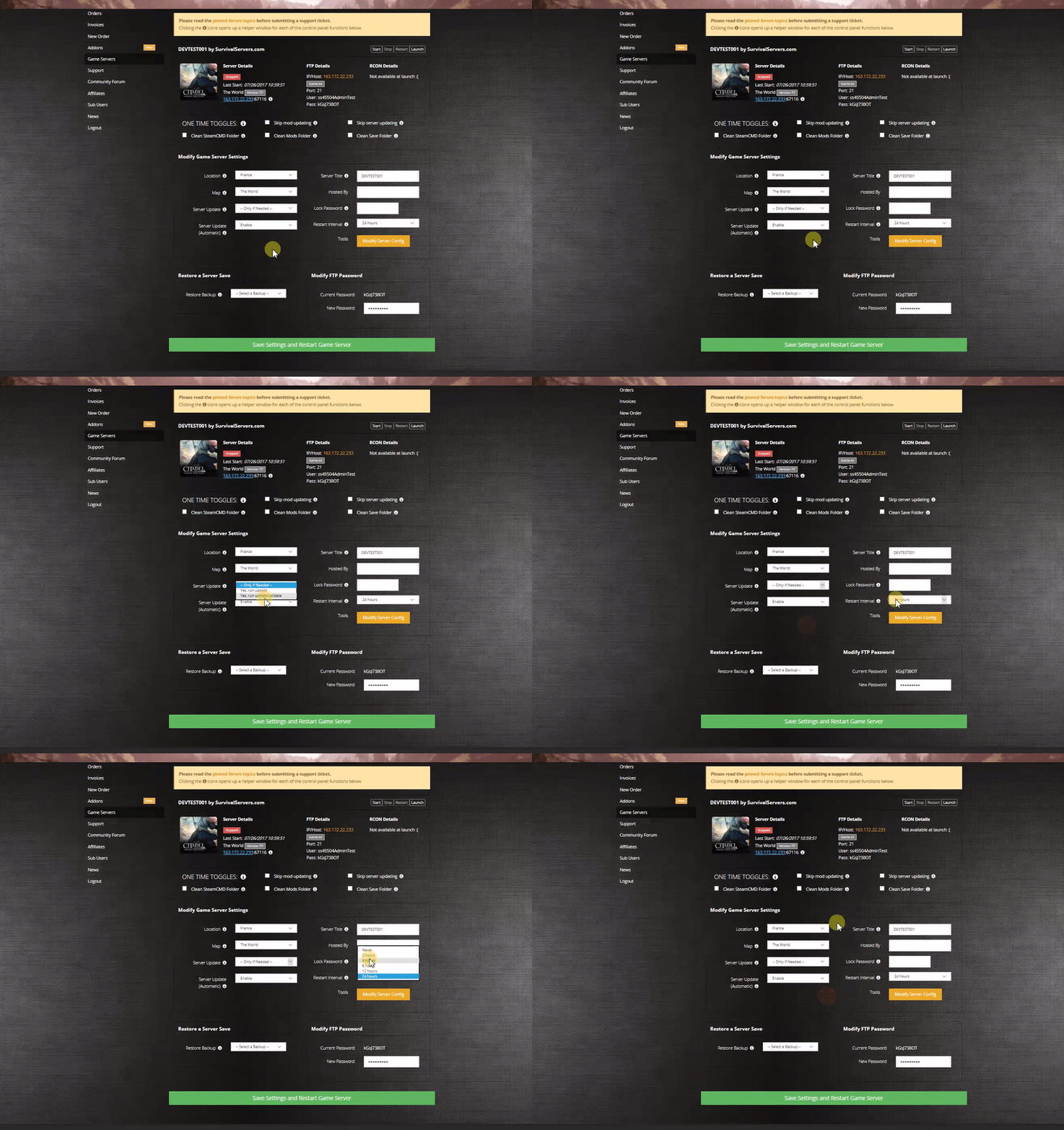
Option #1: Renting a Starrupture server (example control panel below)
Included features
- One-click install/updates
- Start/stop/restart and scheduled restarts
- Config editor (server name, ports, player cap) plus raw INI access
- Log viewer and crash detection
Option #2: Hosting on Your Own PC or Dedicated Machine
Server Requirements
- OS: Windows 10/11 or Windows Server 2019/2022 (64-bit)
- CPU: 4 physical cores (i5/Ryzen 5 or better)
- RAM: 16 GB+
- Storage: ~45 GB free
- Network: Wired Ethernet
Step 1: Install the Server with SteamCMD
- Create a folder for the server, e.g. C:\Servers\Starrupture
- Place steamcmd.exe in that folder
- Create SteamCMD.bat with:
@echo off
set SR_DIR=C:\Servers\Starrupture
set SR_APPID=3809400
start "" steamcmd.exe +login anonymous ^
 +force_install_dir "%SR_DIR%" ^
 +app_update %SR_APPID% validate ^
 +quit
- Run SteamCMD.bat as admin
Step 2: Launch the Dedicated Server
Binary:
- StarRuptureServerEOS.exe (installed in the server folder)
Create StartServer.bat:
@echo off
set SR_DIR=C:\Servers\Starrupture
cd /d "%SR_DIR%"

StarRuptureServerEOS.exe ^
 -Log ^
 -MULTIHOME=YOUR.SERVER.IP ^
 -Port=7777 ^
 -QueryPort=27015 ^
 -ServerName="My Starrupture Server"
Port Forwarding
- 7777/UDP – game
- 27015/UDP – query
Allow the server executable through Windows Defender Firewall.
Configuration Files
- Configs (INIs): ...\Saved\Config\WindowsServer\ (e.g., Game.ini, Engine.ini)
- Saves/worlds: ...\Saved\SaveGames\
Stop the server before editing INIs. Back up the entire Saved folder regularly.
Common Admin Tasks
- Change server name: edit the launch parameter -ServerName="Your Name" and restart.
- Adjust player cap: set your desired value with -MaxPlayers=# and restart.
- Schedule restarts: use Windows Task Scheduler to run StartServer.bat at off-hours.
- Logs: start with -Log (console) and check ...\Saved\Logs\.
Troubleshooting
- Server not visible: confirm ports and that -MULTIHOME matches the server’s bound/public IP.
- Join timeouts: forward 7777/UDP and 27015/UDP to the host; avoid double-NAT/VPN on the host.
- Lag/rubber-banding: reduce view-distance/density settings if available; keep the machine lean.